
IT Support. IT Security. Managed IT Services.
We Make Sure Your IT Keeps You Productive & Secure
San Jose & Bay Area Business IT Solutions
- Access IT expertise at a fraction of the cost of hiring, managing, and compensating an internal IT team.
- Rely on our expert support team that knows how to help first and then follow through to reliably solve chronic computer problems
- Managed IT Services: we take over all routine IT tasks for you, like: onboarding new employees troubleshooting employee issues, IT security, insurance and compliance
How Can We Help?
It’s our job to help your business save money, work faster and focus on what is most important.
Schedule a 15-minute call to see if we are a good fit to help your organization.
"*" indicates required fields

We're Here To Set The Record Straight...
Having The Right IT Support Partner Can Change Everything
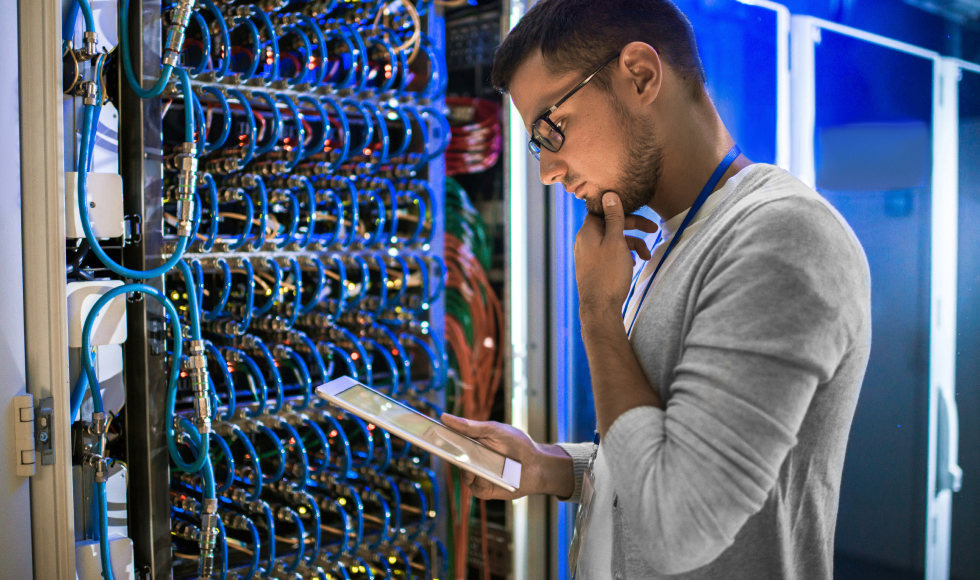

BC Networks is the top IT support company in San Jose and the San Francisco Bay Area.
For 30+ years we have delivered IT support solutions and managed IT services enabling our clients in San Jose and throughout the San Francisco Bay Area to win and their customers to win. However, we are more excited than ever about the wild, ever-changing world of business IT.
Here is how we do it

We Help You Achieve Your
Business Goals
IT isn’t just about IT—it’s about improving the way you do business. We have been delivering managed IT support to organizations in San Jose, Silicon Valley & South Bay long enough to know what it takes to achieve business objectives—it’s not a guessing game.

We Help You Harness
New Technologies
Thirty years in business has taught us that you can’t stop improving. We continue to evolve the toolset we use to support your San Jose business by introducing the right level of automation and AI in order to reduce remedial tasks and deliver incredible results.

We Help You Stay
Secure & Mobile
Being able to access all your data from anywhere, from any device, in a highly secure way, is our method to ensure that your knowledge workers & employees in your San Jose are as productive as they can be.
Getting Started
Is Easy
With the proper level of IT services and support, there's literally nothing your business can't accomplish. That's exactly what we want for you and, at the end of the day, that's what our IT consulting and managed services are all about.
How Can We Help?
- Fill in our quick form.
- We’ll schedule an introductory phone call.
- We’ll take the time to listen and plan the next steps.
Getting started is easy. Give us a call at (408) 214-6380 or complete the form below, and we will get in touch with you to set up an introductory phone call.
"*" indicates required fields
What Makes BC Network Different?
We Take a Personal Approach to IT Support

Clients Love Us
Customer support is our top priority. We do what we say that we are going to do while maintaining fair, transparent pricing.

The IT Risk Assessment
A constantly evolving checklist to ensure that client systems are as stable and consistent as they can be.

Transparent Billing
All items are detailed, so it is clear what you are paying for. Enjoy peace of mind with a predictable cost.

Communication
Client satisfaction and communication are key. Quarterly business reviews and meetings ensure that we meet your expectations.

Availability
Our team is well equipped to support your IT environment remotely. Local resources are also available for site visits.

Managed IT Support
Some other providers don’t include things like new PC deployments and system upgrades.

See What BC Network Clients are Saying

AL, MANUFACTURING
BC Networks, Inc. always delivers over and above my expectations and I would highly recommend them to anyone looking for Managed IT Support Provider services.

CINDY EDUCATION PUBLISHER
We are extremely pleased that we decided to take the huge step to drop our in-house IT personnel and move to BC Networks. Thank you to you and your team!

MICHAEL, MOBILE PATENT TECHNOLOGY
BC Networks, Inc. are an impressive team which delivers on their promises and are stand out performers in the Managed IT Support Provider sector

NANCY STAFFING COMPANY
Understanding the goal of efficiency and zero downtime. Their entire team is focused on ensuring that our needs our met and understands the importance of being responsive.

ANDREW DOBSON, DCT
As a long term client of BC Networks, Inc. I have always been impressed at the high levels of service provided by their team. They are certainly a stand out in the Managed IT Support Provider sector.

MICHAEL, MOBILE PATENT TECHNOLOGY
BC Networks, Inc. are an impressive team which delivers on their promises and are stand out performers in the Managed IT Support Provider sector

IT Projects
Need help with an upcoming project? Let’s work together to get it done on time and on budget.
At BC Networks, we understand you need dependable support you can turn to - not someone who you have difficulty even getting on the phone.
We offer a wide range of project and consulting services for you to choose from, whether you're looking for a major infrastructure upgrade, strategic IT planning or something far smaller in scale, we've got the experience and expertise to help.
Frequently Asked Questions
Periodic hardware failures and new or updated software are common.
Although not considered maintenance, we include handling these situations alongside general maintenance, and they are included in our services.
It's important that you report any issues as soon as possible so we can help resolve them. You can either report them yourself or have your employees reach out to us directly. Either way, we'll be able to help resolve the issue quickly and efficiently. You'll never have to worry about hidden fees or unexpected charges with us.
We pride ourselves on providing excellent customer service. When you call us, you can expect a rapid, courteous response from a real person. We understand how important it is to be able to speak to someone directly when you have questions or concerns, and we will do everything we can to address your needs.
Our IT staff is also certified in a variety of industry-leading technologies. This allows us to offer our clients a wide range of services and support. We are committed to providing our clients with the best possible service and support.
As a leading provider of proactive cybersecurity solutions, we are committed to helping our clients stay one step ahead of the latest threats. Our comprehensive monitoring and detection capabilities provide early warning of potential attacks, allowing our clients to take preventive action before it is too late.
In addition to our proactive monitoring solutions, we also offer a full range of vulnerability scans, intrusion detection, and network security services. Our team of security experts are constantly monitoring the latest threats and developments in the cybersecurity landscape, so you can be confident that your business is always protected.